
User Guide
This guide describes the current workflow for YAAW - Yet Another Agent Wrapper.
What The App Is For
Use the app to organize work done through your preferred local agent CLI or agent CLI harness. Each project is tied to a local directory. Each thread is tied to exactly one local CLI agent session, so work can be resumed without mixing command history, process state, or session identity across unrelated sessions.
YAAW expects you to bring the agent tools you already use, including their authentication, model configuration, shell setup, and command-line behavior. YAAW wraps those local CLIs; it does not act as an agent harness itself. Prompts, tool calls, authentication, model behavior, and remote service access stay inside the selected CLI.
YAAW has no telemetry. Projects, threads, settings, indexes, activity previews, logs, and diagnostics stay on your device. If network traffic happens, it is between you and the agent CLI or CLI harness you chose to run.
The app follows the macOS system appearance by default, pairing macos-light with macos-dark. Dracula remains a built-in dark theme and historical visual baseline, alongside other built-in light, dark, and high-contrast themes.
Settings are stored in an app-owned YAML file. Use the title-bar gear to open Settings for General, Agents, Appearance, Keyboard Shortcuts, and Config File sections. Settings validates changes before saving and does not write app metadata into project directories.
Main Screen
The main screen has three areas:
- Projects sidebar: project and thread navigation.
- Main agent CLI area: the active local CLI agent terminal for the selected thread by default.
- Right-side area: the physical pane on the right side of the window. By default it contains the right tool panel.
The right tool panel is the thread-scoped tools surface: project files, isolated WebKit browser previews, opened files in nvim/vim/vi, and Git workflows in lazygit or git diff. The swap control can move the right tool panel into the main area and move the agent CLI session terminal into the right-side area.
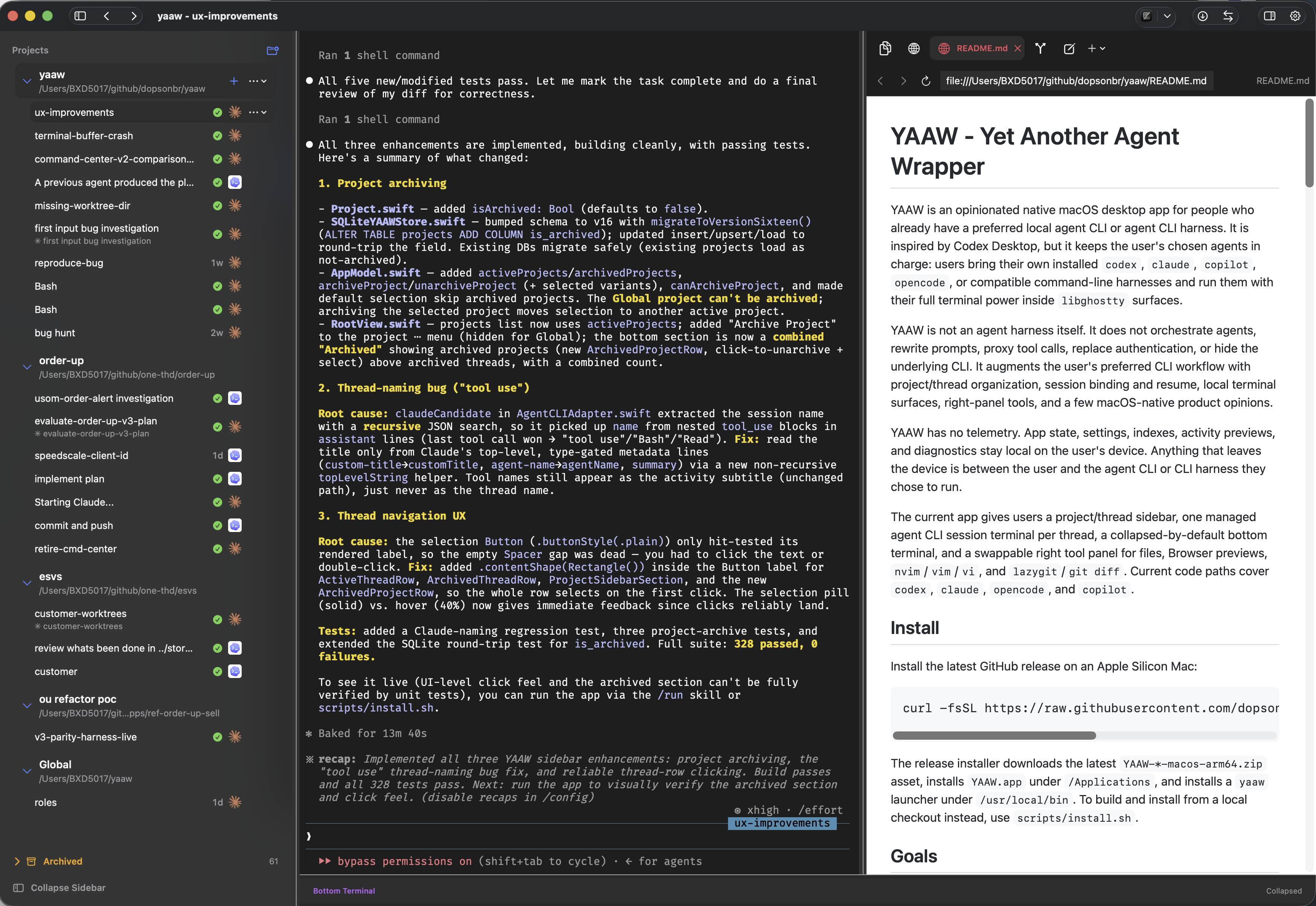
The sidebar nests thread history under each project. Project rows can be expanded or collapsed, pinned, reordered, and used to start a new thread directly in that project. The sidebar and right-side area can both be collapsed to keep the terminal-focused view clean. Every major panel can also be resized.
Create A Project
- Choose the new project action.
- Select a local directory.
- Enter a project name when prompted.
- The app creates the project and prepares it for agent CLI threads in that directory.
- The project appears in the sidebar.
Each project is scoped to one directory. The built-in global project is scoped to the configured global chats directory, defaulting to ~/yaaw.
Start A Thread
- Select a project in the sidebar.
- Use that project’s new-thread action.
- Optionally enter a thread name.
- Choose which available CLI family the thread should invoke.
- The app launches the selected CLI in the thread working directory.
- If the name is left blank, the thread starts with a CLI placeholder and then updates to match the CLI session’s reported name, title, or id.
Each thread has its own agent CLI session terminal. Switching threads switches the active terminal and preserves the thread’s selected CLI session identity.
For CLIs with native start-name support, YAAW passes the requested name at launch. For CLIs that confirm names through slash commands, YAAW queues the rename and waits for CLI metadata before treating it as canonical.
Switch Threads
Use the left sidebar to select a different thread. Expand a project row to see its active thread history, or use the combined Archived section at the bottom of the sidebar to inspect archived projects and archived threads.
When a thread is selected:
- The main agent CLI area switches to that thread’s agent CLI session terminal unless the workspace is swapped.
- If the thread is reopened after being closed, the app resumes the stored CLI session identity.
- If an older thread has no stored CLI session identity, the app first auto-links a unique exact local CLI session name match and resumes it.
- If no unique exact match exists, the terminal area asks you to link an existing local CLI session or explicitly start a new one.
- The right tool panel shows files and tools for that thread’s project, whether it is in the right-side area or swapped into the main area.
- The top project/thread area reflects the active context.
Pinned threads appear above unpinned threads inside their project. Unpinned threads are ordered by most recently opened.
Organize Projects
Pin important projects to keep them above unpinned projects. Drag project rows to move projects within the pinned or unpinned group. Project order, pin state, and expanded/collapsed state are app-owned metadata and do not write files into project directories.
Archive a project when it should leave the active project list. Archived projects move to the combined Archived section with archived threads. The Global project cannot be archived.
Use The Agent CLI Session Terminal
The agent CLI session terminal is the main working surface. It starts in the selected thread’s working directory, runs the thread’s bound user-installed local CLI agent session, and behaves like a native terminal because it is backed by libghostty.
Current behavior is:
- One agent CLI session terminal per thread.
- User-owned agent CLI and harness behavior remains inside that CLI process.
- The selected CLI family remains associated with the thread.
- The CLI session name is the source of the visible thread name.
- Reopening the thread resumes the associated CLI session.
- Thread names follow CLI-confirmed metadata, including manual
/renamechanges when the CLI reports the updated name. - Project commands run from the project directory.
- Terminal surfaces use the selected built-in theme.
Use a thread row’s actions menu and choose Rename Thread... to rename a supported CLI session. The old name remains visible until the CLI reports the new name. OpenCode resume and linking are supported, but rename is hidden until a confirmable native rename path is available.
Track Agent Activity
Thread rows show the latest known agent activity:
- Cyan spinner/ring: working.
- Yellow attention state: needs input.
- Green check: complete.
- Muted ring: inactive.
When an agent sends a terminal notification, YAAW updates that thread’s status and shows a short sanitized preview under the thread name. If the app is not already focused on that thread’s agent terminal, YAAW also sends a macOS notification named with the thread title and a preview body when available. Selecting and focusing the thread marks its notification read without clearing the preview.
Managed agent terminals expose a helper command named yaaw-notify:
yaaw-notify --status needs-input --title "Approval needed" --body "Review the proposed command"
yaaw-notify --status complete --title "Task complete" --body "Tests passed"
The helper is added only to YAAW-managed agent terminal sessions. It writes app-owned notification metadata under Application Support and emits a terminal notification sequence for compatibility. YAAW does not edit Codex, Claude, OpenCode, Copilot, shell, or repository config files automatically; users can add hook calls themselves if they want deeper integration.
Use The Bottom Terminal
The bottom terminal is collapsed by default and scoped to the selected project thread.
Press Cmd+J to toggle it.
Use the bottom terminal for commands tied to the active project thread. Toggling or resizing it does not change the sidebar width, sidebar collapsed state, selected project, selected thread, or left-panel content.
Browse Project Files
The right tool panel can show the selected project’s file tree.
Use it to:
- Inspect the project directory.
- Find files by name.
- Use fuzzy matching to narrow large file lists.
When multiple threads use the same directory and Git branch, the file list reuses the same app-owned SQLite cache. Switching between those threads keeps cached file entries available while YAAW refreshes them in the background.
The file browser can be collapsed when it is not needed.
File And App Icons
YAAW uses native macOS symbols for app controls such as settings, navigation, panel toggles, refresh, warnings, archives, pins, and right-tool-panel mode buttons. The file browser uses VS Code-inspired file and folder identity icons so common source files, config files, docs, and project folders are easier to scan.
The default file browser icon pack is material-file-icons. To use the softer Dracula-friendly alternate, set icons.fileBrowserPack to catppuccin-file-icons in the app-owned YAML settings file and reload settings. This setting changes file and folder icons only; app control icons remain native macOS symbols.
Switch Right Tool Panel Modes
The right tool panel has four modes:
- Files: browse the project file tree and search with fuzzy matching.
- Browser: preview supported project files or enter a web URL inside the right tool panel.
- nvim: open and edit a selected file inside the right tool panel with
nvim, falling back tovimand thenvi. - Git: open
lazygitinside the right tool panel, falling back togit diffwhenlazygitis unavailable.
Switch modes by clicking the right-tool-panel mode icons or by cycling the panel tabs. The active mode stays scoped to the selected project/thread.
Open A Project Or File Externally
Use the title-bar external-open control to open the selected thread working directory in an installed external destination. If no thread is selected, YAAW opens the selected project root.
Use a file row’s context menu to copy either the relative path or full path. The same menu can open supported preview files in Browser, open the item in the configured default external editor, or open files in the built-in right-tool-panel editor.
YAAW detects supported destinations from installed macOS apps and shows them in settings order. Supported destinations are VS Code, VS Code Insiders, Sublime Text, Zed, Finder, Terminal, Ghostty, Xcode, and WebStorm.
Open A File Or URL In Browser
Use the right-tool-panel new-tab menu and choose Web Browser to open a browser tab. Enter a URL in the address field to navigate inside the right tool panel. Browser rendering runs in a helper process so a renderer crash should show a recovery state without taking down YAAW.
From Files mode, right-click a supported preview file and choose Open in Browser. Supported preview types include HTML, Markdown, SVG, PDF, common images, text, JSON, and XML. Markdown previews render as a GitHub-like HTML page with Mermaid fenced diagrams and relative images or links resolved from the Markdown file’s directory.
The General Settings section controls whether Markdown and HTML row opens use Browser preview or the editor by default. The context menu still exposes explicit Browser and editor choices.
Open A File In nvim
- Select a project thread.
- Open the right tool panel.
- Search or browse to a file.
- Open the file.
- The right tool panel switches to
nvimand opens the selected file.
The editor session runs inside the selected thread’s working directory and stays in the right tool panel. YAAW tries nvim first, then vim, then vi. It does not open a separate app window.
Open lazygit
- Select a project thread.
- Open the right tool panel.
- Click the Git mode icon or cycle tabs until Git is active.
- The right tool panel opens a terminal and starts
lazygitin the selected thread’s working directory.
Use lazygit for focused Git tasks without leaving the app shell. If lazygit is unavailable, YAAW opens git diff in the same right-tool-panel terminal. This flow stays inside the right tool panel.
Paste Images Into CLIs
When a CLI terminal has focus, use Cmd+V to paste. Text follows the normal terminal paste behavior. Images from the pasteboard use the terminal’s native attachment shortcut, so YAAW does not insert a visible filesystem path. Ctrl+V uses the same native image attach behavior when the terminal has focus.
Screenshot Reference
Current and historical screenshots live under docs/examples/screenshots/. Prefer docs/examples/screenshots/current/ for screenshots that are meant to describe the current app, and treat older plan-specific screenshots as implementation evidence for that plan rather than as the canonical UI.
Resize Panels
Drag panel dividers to resize the workspace.
The resizeable panels are:
- Projects sidebar width.
- Main agent CLI session terminal width.
- Right-side area width.
- Bottom terminal height when expanded.
Drag the right divider left to make the right-side area larger. It can grow across the available workspace up to the projects sidebar boundary. Use the swap control in the title bar or Layout menu to move the agent CLI session terminal into the right-side area and move the right tool panel into the main area.
Archive Threads
Archive a thread when it is no longer part of the active project list.
Archived threads move out of each project’s active list but remain available from the combined Archived section at the bottom of the sidebar. Archiving keeps the selected agent CLI and session identity so the thread can be resumed later.
Archived thread rows also expose Rename Thread... when the underlying CLI supports confirmable rename.
Keyboard Shortcuts
| Shortcut | Action |
|---|---|
Cmd+, |
Open Settings. |
Cmd+N |
Create a project from a chosen directory. |
Cmd+Shift+N |
Create a thread under the selected project with the configured default agent CLI. |
Cmd+J |
Toggle the selected-thread bottom terminal. |
Cmd+[ |
Navigate back. |
Cmd+] |
Navigate forward. |
Cmd+Shift+[ |
Cycle right-tool-panel tabs backward. |
Cmd+Shift+] |
Cycle right-tool-panel tabs forward. |
Cmd+1 |
Select Files in the right tool panel. |
Cmd+2 |
Select Git in the right tool panel. |
Cmd+3 |
Select nvim in the right tool panel. |
Cmd+Option+S |
Toggle the sidebar. |
Cmd+Option+R |
Toggle the right-side area. |
Open Settings and choose Key Bindings to search every configurable action, edit its key and modifiers, clear the binding, or restore the default. Contextual actions such as pinning, archiving, external-open targets, Settings YAML actions, and selected-file actions are bindable even when they are unbound by default.
The generated YAML exposes the same complete action list under keyboardShortcuts. Set key: "" and modifiers: [] to leave an action unbound. Invalid entries fall back to their defaults, and conflicting active bindings in the same scope are shown as conflicts in Settings.
Configure Settings
Open the title-bar gear to use native Settings. By default, settings live at:
~/Library/Application Support/YAAW/settings.yaml
The generated YAML file includes comments showing current defaults and which fields are active now. Current active settings include theme selection, system light/dark pairing, the complete key binding catalog, the default agent CLI, per-agent command names, permission defaults, additional launch arguments, editor fallback order, external-open destination order, Git and diff commands, fonts, Markdown/HTML row-open behavior, and file indexing ignore rules.
General Settings covers the default agent, Markdown/HTML row-open behavior, CLI option cache refresh, build information, and the global chats directory.
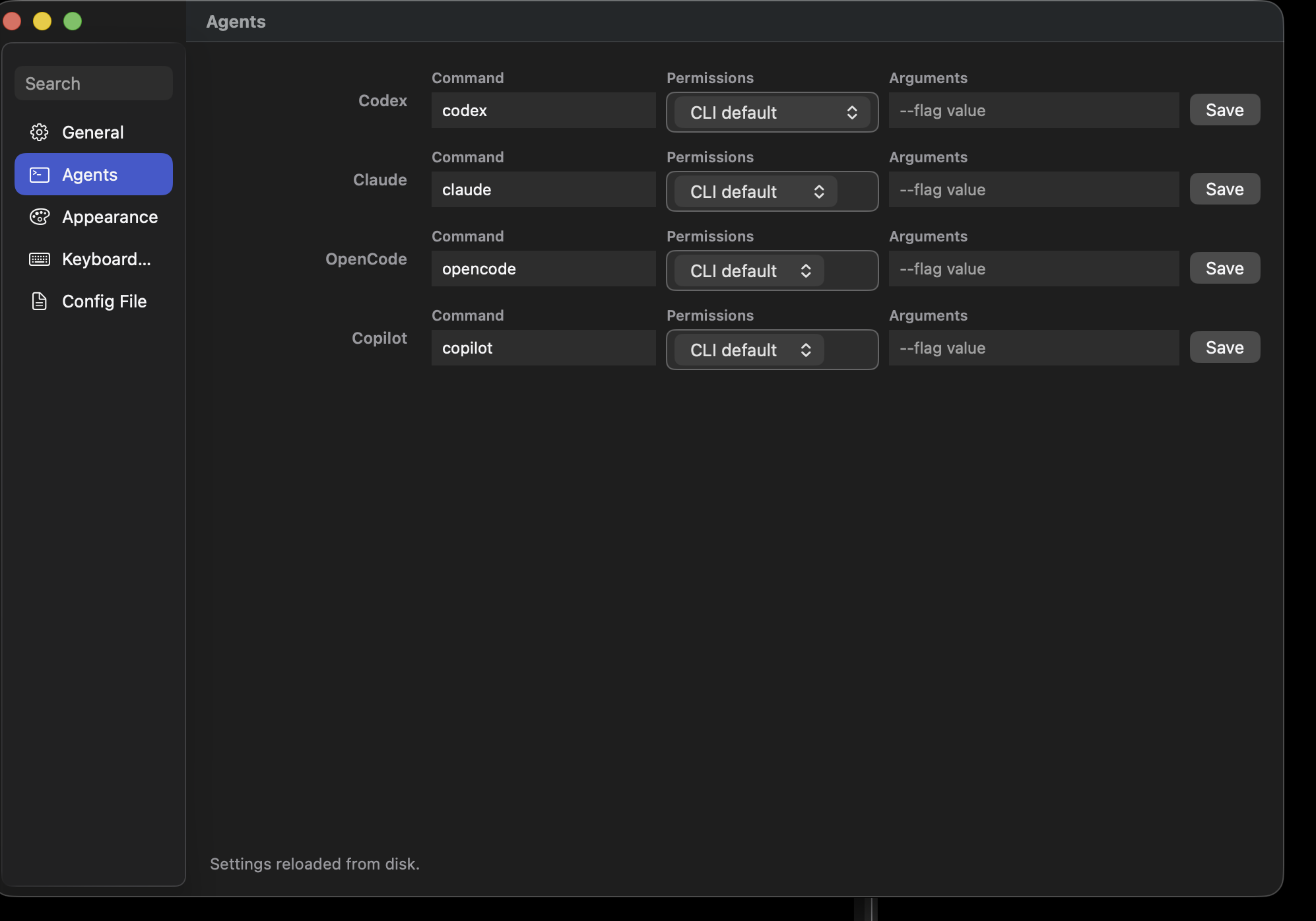
Agents Settings lets each supported CLI family use a custom executable command, permission default, and additional launch arguments. Permission options are discovered from the CLI’s --help output when available; YAAW keeps cached and fallback presets so Settings and thread creation can still work when a CLI is temporarily unavailable.
Global chat settings are represented under projects.globalChatsDirectory and are also editable from Settings General. The default is ~/yaaw; YAAW creates that directory when needed. Global chats stay available from the Global project row, but YAAW does not open or create one by default.
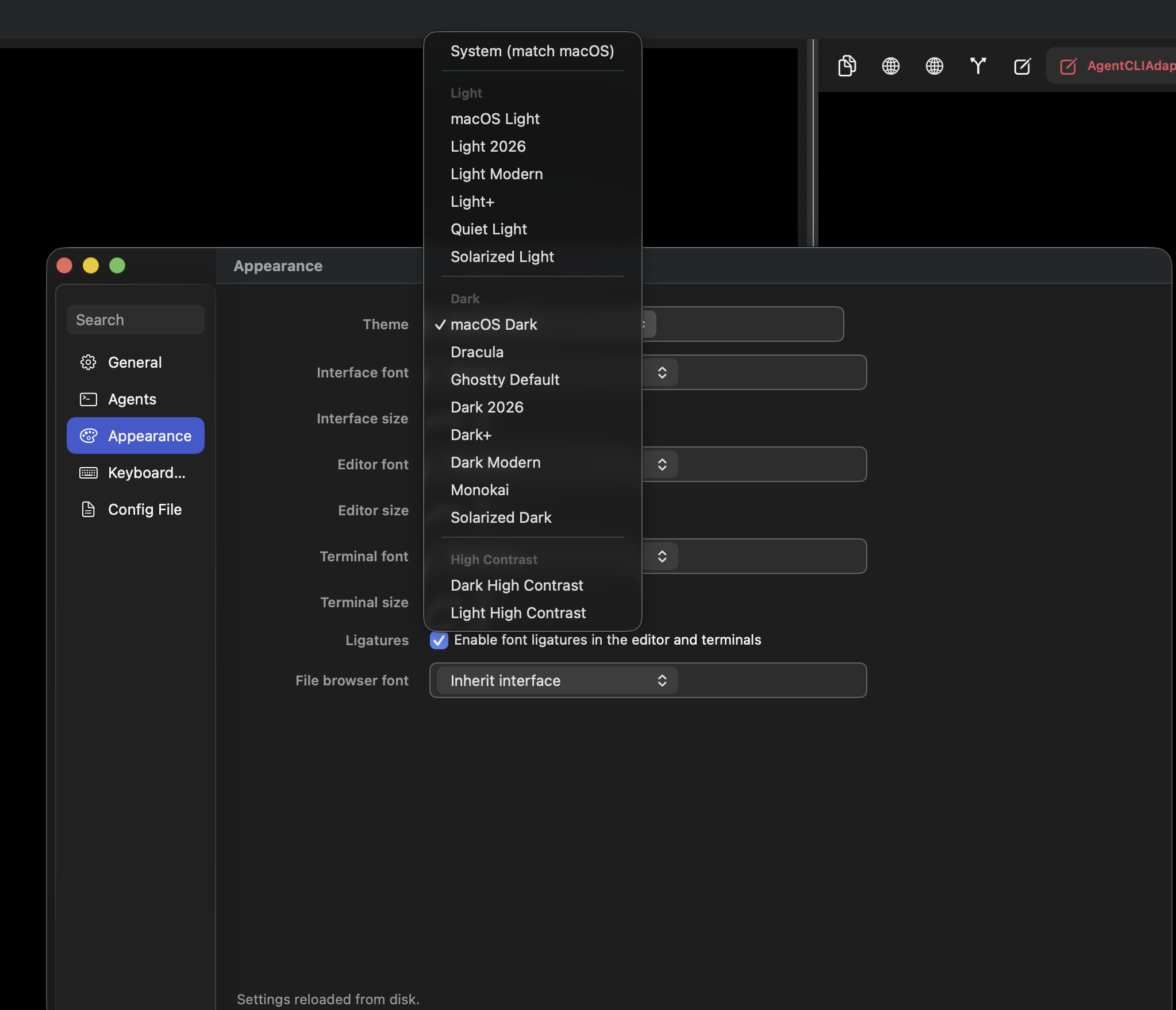
Theme settings are represented under theme.active, theme.light, and theme.dark. The default theme.active: system follows the macOS appearance and uses the light/dark pairing. Use the Settings Appearance picker or set one of the supported theme ids in YAML: system, macos-light, macos-dark, dracula, ghostty-default, dark-2026, dark-plus, dark-modern, monokai, solarized-dark, light-2026, light-modern, light-plus, quiet-light, solarized-light, dark-high-contrast, or light-high-contrast. Unknown values fall back to system and record a local diagnostic event. Custom theme palettes are placeholders for future expansion.
Icon settings are represented under icons.fileBrowserPack. Supported values are material-file-icons and catppuccin-file-icons; unknown values fall back to material-file-icons and record a local diagnostic event.
Font settings are represented under fonts. Use interfaceFamily / interfaceSize for app chrome and navigation text, editorFamily / editorSize for the in-app YAML/editor-style text, terminalFamily / terminalSize for embedded Ghostty terminal surfaces, fileBrowserFamily / fileBrowserSize for file rows, and ligatures for editor and terminal text shaping. system and system-monospace select native macOS fonts; other family values should match installed font family names. Leave terminalFamily empty to keep Ghostty’s default terminal font family.
External-open settings are represented under tools.externalOpen. Set default to the preferred destination id and use preferred to control menu order. Supported ids are vscode, vscode-insiders, sublime-text, zed, finder, terminal, ghostty, xcode, and webstorm.
Use Save to validate, write, and apply YAML changes. Reload re-reads the file from disk, Revert discards unsaved editor changes, and Back returns to the workspace. If the YAML is malformed, YAAW shows the validation error and does not overwrite the last saved file.
Recommended First Workflow
- Create a project from a local repo directory.
- Name the project.
- Start a thread for the task you want the agent to work on.
- Choose an available CLI family for the new thread.
- Use the agent CLI session terminal for that thread.
- Let the thread name mirror the CLI session name once the CLI reports it.
- Use the file browser to inspect project files.
- Open supported preview files or URLs in Browser mode when you need a quick visual check.
- Open a file in
nviminside the right tool panel when you need to inspect or edit it. - Use external-open when you need the project or a file in a full editor, Finder, Terminal, or Ghostty.
- Switch the right tool panel to Git when you need
lazygitorgit diff. - Resize or collapse panels when you want more terminal or editor space.
- Archive the thread when the work is complete.
Current Boundaries
The current app stays focused on terminal-first CLI agent workflows, simple project/thread management, lightweight file browsing, isolated right-tool-panel WebKit previews, terminal-backed editor fallback through nvim, vim, or vi, external-open handoff to installed macOS apps, and Git workflows through lazygit or git diff. Current implementation paths cover codex, claude, opencode, and copilot, but YAAW treats them as user-provided tools rather than bundled agent runtimes.
Use a full editor or external tools for advanced editing, source control management, debugging, or deep project analysis until those features are intentionally added.